

A Windows 11 ISO file is a complete digital copy of the Windows 11 operating system packaged into a single file format. This file contains all the necessary installation data required to install or reinstall the operating system on a computer. Unlike standard updates that install directly through system settings, an ISO file gives users greater control over how and where windows 11 iso is installed. It can be used to create bootable media such as USB drives or DVDs, making it an essential tool for both beginners and advanced users.
Many users prefer using a Windows 11 ISO because it allows for a clean installation. A clean install removes old files, system clutter, and potential errors that may have accumulated over time. This leads to better performance, improved stability, and a fresh computing experience. Additionally, ISO files are particularly useful for system recovery, troubleshooting, or installing Windows on multiple devices without repeatedly downloading the operating system.
Another major advantage is flexibility. Whether you want to upgrade from Windows 10, install Windows 11 on a new PC, or test it in a virtual environment, the ISO file makes the process seamless. It also provides offline installation capability, which is beneficial in areas with limited internet access. Overall, using a Windows 11 ISO is a reliable and efficient method for managing operating system installations.
Key Features of Windows 11
Windows 11 introduces a modern and visually appealing interface that enhances user experience. The redesigned Start Menu, centered taskbar, and rounded corners create a clean and minimalist aesthetic. These design improvements are not just visual; they also improve accessibility and usability. The new layout makes navigation simpler, allowing users to find applications and settings more efficiently.
Performance improvements are another highlight of Windows 11. The operating system is optimized to use system resources more effectively, resulting in faster boot times and smoother multitasking. Features like Snap Layouts and Snap Groups allow users to organize multiple windows effortlessly, boosting productivity. Virtual Desktops have also been enhanced, enabling users to create separate workspaces for different tasks.
Gamers benefit significantly from Windows 11 through technologies like Auto HDR and DirectStorage. These features improve graphics quality and reduce load times, delivering a more immersive gaming experience. Additionally, Windows 11 includes better support for modern hardware, ensuring compatibility with the latest processors and graphics cards.
Security has also been strengthened in Windows 11. Built-in protections such as hardware-based isolation, secure boot, and advanced encryption help safeguard user data. These features make Windows 11 one of the most secure versions of the operating system to date, making it a strong choice for both personal and professional use.
System Requirements for Windows 11
Before installing Windows 11 using an ISO file, it is essential to ensure that your system meets the minimum requirements. These include a compatible 64-bit processor, at least 4GB of RAM, and 64GB of storage. Additionally, features like TPM 2.0 (Trusted Platform Module) and Secure Boot are mandatory for official support. These requirements are designed to enhance security and performance.
Checking system compatibility is a crucial step before installation. Users can use built-in tools or third-party applications to determine whether their device meets the requirements. Ensuring compatibility helps avoid installation errors and ensures a smoother experience. It also reduces the risk of system instability or performance issues after installation.
For users with unsupported hardware, there are workarounds available, but they come with certain risks. Installing Windows 11 on unsupported systems may lead to limited updates or compatibility issues. Therefore, it is recommended to proceed cautiously and back up important data before attempting such installations.
Preparing your system is equally important. This includes updating drivers, freeing up disk space, and backing up essential files. Taking these precautions ensures a smooth installation process and minimizes the chances of data loss. Proper preparation can make a significant difference in the overall installation experience.
How to Download Windows 11 ISO
Downloading the Windows 11 ISO file is a straightforward process when done through official sources. The safest and most reliable method is to download it directly from the official Microsoft website. This ensures that the file is authentic, secure, and free from malware or modifications.
When downloading the ISO, users are required to select the desired edition, such as Home or Pro. Choosing the correct version is important, as it determines the features and capabilities available after installation. Language selection is another key step, especially for users who prefer a localized interface.
The file size of the Windows 11 ISO is relatively large, typically around 5GB or more. Therefore, a stable internet connection is recommended to avoid interruptions during the download process. It is also advisable to verify the file after downloading to ensure its integrity.
Avoid downloading ISO files from unofficial or third-party websites, as they may contain harmful software or outdated versions. Sticking to official sources guarantees a safe and secure installation process. By following these steps, users can confidently obtain a genuine Windows 11 ISO file.
Creating Bootable USB from Windows 11 ISO
Creating a bootable USB drive is one of the most common ways to use a Windows 11 ISO file. This process involves transferring the ISO contents to a USB drive in a way that allows the system to boot from it. Tools like Rufus or the Media Creation Tool simplify this process and make it accessible even for beginners.
The first step is to insert a USB drive with sufficient storage capacity, typically at least 8GB. Using a tool like Rufus, users can select the ISO file and configure the necessary settings. Once the process begins, the tool formats the USB drive and copies the installation files, making it bootable.
After creating the bootable USB, users need to configure their system’s BIOS or UEFI settings. This involves setting the USB drive as the primary boot device. Restarting the computer will then launch the Windows 11 installation process from the USB drive.
Common issues during this process include formatting errors or incorrect BIOS settings. These can usually be resolved by reformatting the USB drive or updating system firmware. With proper steps, creating a bootable USB becomes a simple and effective way to install Windows 11.
How to Install Windows 11 Using ISO
Installing Windows 11 using an ISO file provides flexibility and control. Users can choose between a clean installation or an upgrade installation. A clean installation is recommended for better performance, as it removes old files and settings.
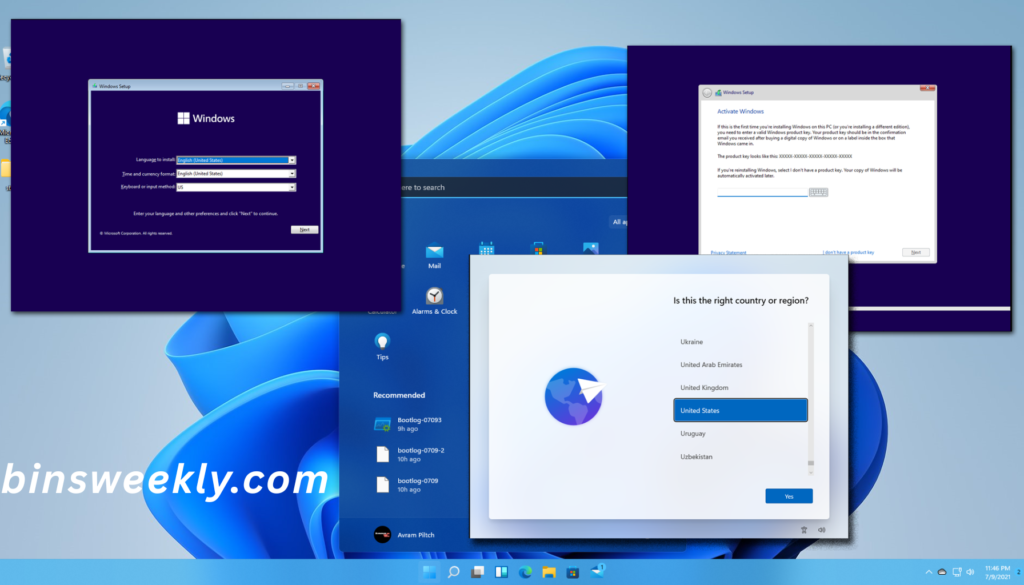
The installation process begins by booting from the USB drive or mounting the ISO file. Users are guided through a series of steps, including selecting language, time, and keyboard preferences. The installer also allows users to partition and format drives, ensuring proper storage allocation.
During installation, users may be prompted to enter a product key. This step can be skipped and completed later if needed. Once the installation is complete, the system restarts and enters the initial setup phase, where users can customize settings and create accounts.
Proper installation ensures optimal performance and stability. Taking time to configure settings and install necessary drivers enhances the overall experience. With the right approach, installing Windows 11 using an ISO becomes a smooth and rewarding process.
Conclusion
Using a Windows 11 ISO file is one of the most efficient ways to install or upgrade an operating system. It offers flexibility, control, and reliability, making it suitable for a wide range of users. Whether you are performing a clean install, upgrading your system, or setting up a virtual environment, the ISO method provides a comprehensive solution.
FAQs
Is Windows 11 ISO free to download?
Yes, the ISO file is free to download, but a valid license is required for activation.
What is the size of the Windows 11 ISO file?
The file size is typically around 5GB, depending on the version and language.
Can I upgrade from Windows 10 using an ISO file?
Yes, you can upgrade directly by mounting the ISO and running the setup file.
Do I need a product key for installation?
You can install without a key, but activation is required for full functionality.
Is it safe to install Windows 11 on unsupported PCs?
It is possible but not recommended due to potential compatibility and update issues.
Which tool is best for creating a bootable USB?
Tools like Rufus and Media Creation Tool are widely recommended.
How long does it take to install Windows 11?
Installation usually takes 20 to 45 minutes, depending on system performance.